

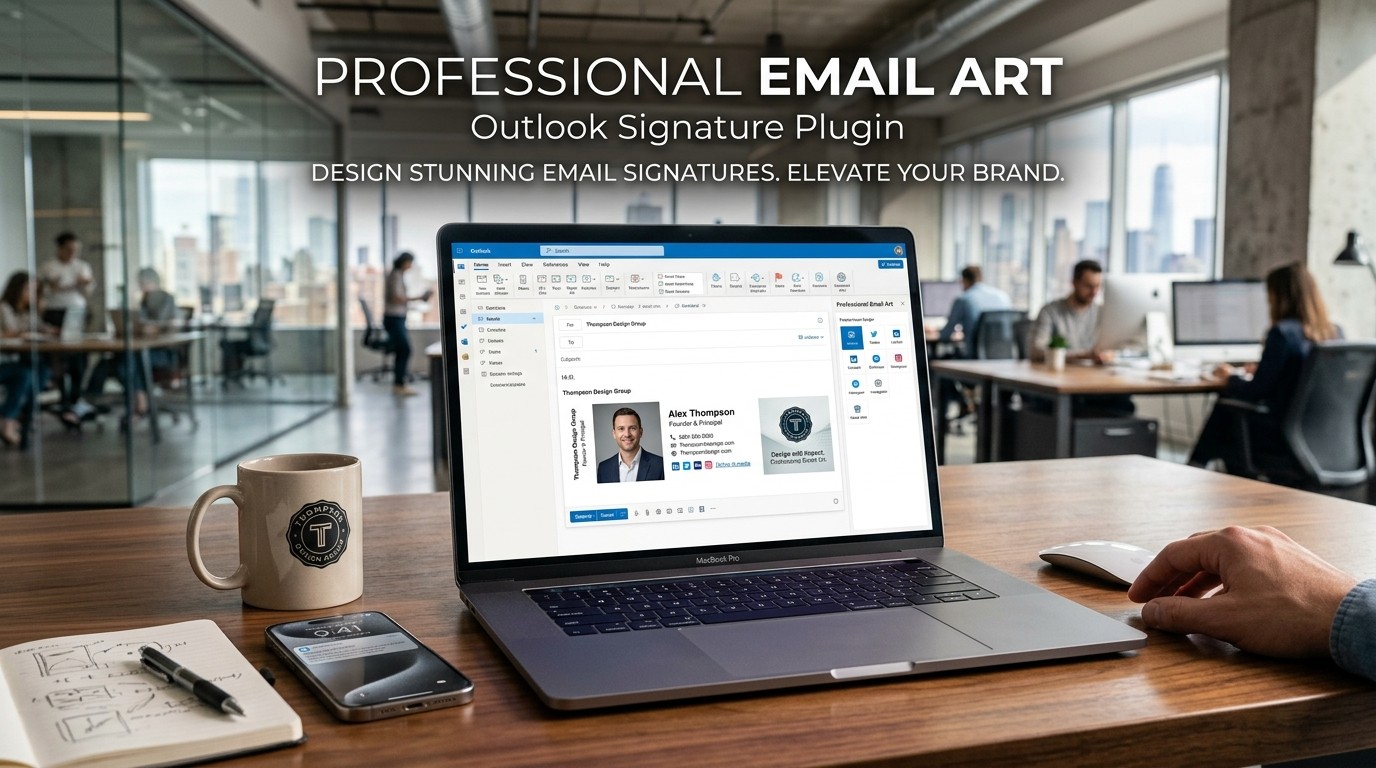
An Outlook Signature Plugin helps teams standardize branding, save time, and turn every email into a consistent, polished communication touchpoint that supports trust and professionalism.
Email is still one of the most important channels in business communication, and the smallest details often create the strongest impression. A sender name, a clean layout, a helpful call to action, and a consistent visual identity can shape how people perceive your message long before they read the body of the email. That is why an Outlook Signature Plugin is more than a convenience tool. It is a branding layer, a productivity aid, and a small but powerful part of how a company presents itself.
Many teams overlook the signature because it sits at the bottom of the email. That is a mistake. The signature is one of the most repeated assets in the entire communication workflow. Every outbound email becomes an opportunity to reinforce trust, guide action, and create recognition. The plugin is more than a convenience tool. It is a branding layer, a productivity aid, and a small but powerful part of how a company presents itself.
The modern workplace also depends on speed. Marketing teams, sales teams, customer success teams, and founders all send large volumes of email. Manually editing signatures for every account, device, or campaign is inefficient and inconsistent. An Outlook Signature Plugin solves that problem by giving administrators a central system for design, deployment, and updates. That means fewer errors, less manual work, and a more professional appearance across the organization.
To understand why this matters, imagine a prospect receiving emails from five different people in the same company. If each signature looks different, the brand feels fragmented. If each one follows the same structure, the company feels organized and credible. An Outlook Signature Plugin creates that consistency while still allowing flexibility for roles, regions, and campaigns.
Why Email Signatures Matter More Than People Think
A signature is not just a name and phone number. It is a micro-branding asset that appears in one of the most repetitive interactions a company has with its audience. When done well, it makes the sender easier to trust, easier to remember, and easier to contact. An Outlook Signature Plugin helps transform that tiny space into something strategic rather than decorative.
Used well, the Outlook Signature Plugin turns a routine footer into a steady brand signal that supports recognition, trust, and a clearer next step for the reader.
The psychology behind email signatures is simple. People notice patterns. When a signature looks polished, the sender feels more reliable. When the structure is uniform across departments, the company feels more coordinated. When the call to action is clear, the email can do more than inform. An Outlook Signature Plugin supports all of those outcomes by giving teams a repeatable framework.
There is also a practical side. Contact information changes, job titles change, promotions change, and campaign links change. Without a centralized system, updating all signatures becomes a headache. With the plugin, changes can be applied across the team without asking every employee to update their individual setup. That saves time and reduces costly mistakes.
What an Outlook Signature Plugin Actually Does
At its core, an Outlook Signature Plugin helps create, manage, and deploy email signatures inside Microsoft Outlook. The exact feature set depends on the vendor, but the best tools typically include centralized control, branding templates, team-level rules, and dynamic content insertion. That means a single change can ripple across multiple users without manual editing.
In practice, the Outlook Signature Plugin keeps the right fields, visuals, and rules aligned so every sender looks consistent without needing manual edits.
A strong Outlook Signature Plugin may also support campaign banners, disclaimers, social icons, user-specific fields, and different layouts for different departments. This flexibility matters because sales teams, HR teams, executives, and support teams often need slightly different signature structures. Rather than forcing one static design on everyone, the plugin helps build a consistent system with room for customization.
The biggest value is not the design itself but the operational control. When a business uses the plugin, the signature is no longer an uncontrolled personal choice. It becomes a managed part of the communication strategy. That shift reduces chaos and improves brand visibility at scale.
Core Benefits for Businesses

An Outlook Signature Plugin creates several benefits at once. First, it strengthens brand consistency. Every employee can send emails that look aligned with the company’s visual identity, making the organization feel more trustworthy and professional.
For many teams, the Outlook Signature Plugin also cuts support work because admins can update titles, links, and disclaimers once instead of fixing dozens of individual signatures.
Second, it saves time. Teams no longer need to manually edit signatures every time a title changes, a campaign starts, or a legal disclaimer needs to be added. An Outlook Signature Plugin centralizes those updates and removes repetitive work.
Third, it improves marketing reach. Many companies use signatures as a subtle distribution channel for webinars, product launches, or seasonal offers. An Outlook Signature Plugin can insert banners or links into outbound email, turning everyday communication into a light promotional surface.
Fourth, it supports compliance and control. In regulated industries, signatures often need legal text or approved contact details. A managed system ensures that those elements stay consistent. That is one reason many organizations treat an Outlook Signature Plugin as part of governance, not just design.
How Teams Use Signature Management Strategically
The best teams do not treat signatures as an afterthought. They use them as part of a larger communication system. For example, a sales team might feature a booking link, a support team might include a help center link, and a leadership team might use a minimalist design with authority cues. An Outlook Signature Plugin makes those different use cases manageable from one dashboard.
The Outlook Signature Plugin is especially useful when different departments need different messages but still want one clean, companywide look.
Marketing teams may use signatures to promote events or content. HR teams may use them to reinforce employer branding. Customer success teams may use them to guide users toward support resources or onboarding materials. The same plugin can support all of those goals without requiring separate manual workflows.
The strategic advantage is that signatures travel with the message. They do not require a separate ad buy or a separate campaign send. They appear in everyday communication, which means they often get seen by high-intent contacts who are already engaged. That makes the signature one of the quietest but most useful pieces of email infrastructure.
What to Look For in a Signature Tool
| Feature | Why It Matters | Business Impact |
|---|---|---|
| Centralized control | One place to manage updates | Less manual work |
| Template management | Consistent design across users | Stronger branding |
| Dynamic fields | Auto-fill names, titles, teams | Fewer errors |
| Campaign banners | Promote offers or announcements | More visibility |
| Compliance support | Add required legal text | Lower risk |
| Device consistency | Works across desktop and mobile | Better user experience |
| Role-based rules | Different signatures for different teams | Better targeting |
A useful Outlook Signature Plugin should support the daily realities of a company, not just the design preferences of one person. The table above captures the features that matter most when you want signatures to be reliable, scalable, and easy to govern.
Design Principles for Professional Email Art
A signature should look clean before it looks clever. That means clear typography, balanced spacing, readable contact information, and a restrained visual hierarchy. A good Outlook Signature Plugin makes it easier to keep spacing, typography, and visual hierarchy simple, which usually reads as more trustworthy to busy recipients.
Start with simplicity. Too many colors, too many icons, and too many calls to action can make the signature feel noisy. A professional layout usually includes a name, title, company, phone number, and one or two useful links. The best designs are calm, structured, and easy to scan.
Alignment matters too. A signature should feel intentional, not crowded. Consistent spacing and logical grouping help the eye move naturally from one element to the next. When an Outlook Signature Plugin is used well, the design feels polished across every message without needing individual adjustments.
Visual balance and hierarchy
The sender’s name should usually stand out first. The title should follow clearly. Contact details should be easy to identify. Any promotional banner or secondary link should be present but not overwhelming. An Outlook Signature Plugin helps preserve this hierarchy so the signature supports the email instead of competing with it.
How to Avoid Common Mistakes
The most common mistake is overdesign. Some teams try to squeeze too much into the signature. They add multiple banners, logos, disclaimers, social rows, badges, quotes, and several calls to action. The result is clutter. An Outlook Signature Plugin should reduce that clutter, not increase it.
Another mistake is inconsistent formatting. If different users have different line spacing, font sizes, and image sizes, the brand starts to feel messy. A good plugin prevents that by keeping templates consistent. This is especially important for larger teams where manual design drift happens easily.
A third mistake is ignoring mobile behavior. Many recipients read email on phones. If the signature is too wide or too image-heavy, it may break on smaller screens. An Outlook Signature Plugin should support responsive layouts or at least stable formatting so the message remains readable everywhere.
Administrative Control and Brand Governance
The real power of an Outlook Signature Plugin is not the signature itself. It is the governance behind it. A business can define approved layouts, control approved links, standardize disclaimers, and ensure updates roll out across the team. That governance protects brand consistency and reduces risk.
The Outlook Signature Plugin gives leaders a practical way to govern approved wording, contact details, and legal copy without turning every update into a manual project.
This becomes especially important as the company grows. New hires join. Teams expand. Campaigns change. Legal language updates. Without central oversight, signatures become a patchwork of outdated information. An Outlook Signature Plugin keeps the system current without turning every update into a manual project.
There is also a trust benefit. When customers and partners see the same professional structure across departments, the organization feels more mature. That consistency is subtle, but it matters. In a crowded inbox, polished repetition can strengthen perception over time.
Role-Based Signature Logic
Not every employee needs the same signature. A salesperson may need a meeting link, while a support agent may need a ticket portal. A recruiter may want candidate-friendly language, while an executive may prefer a short, high-authority format. An Outlook Signature Plugin allows those differences without sacrificing visual consistency.
This is one of the reasons the tool is useful in larger organizations. It supports variation within a controlled framework. You can create templates for departments, regions, campaigns, or seniority levels. The result is a signature system that feels tailored without becoming messy.
The best version of this approach is based on clear rules. Decide what must stay the same, what may vary, and what should never change. Then implement those rules through the Outlook Signature Plugin so the workflow stays stable as the team grows.
Relationship to Sales and Marketing Workflows
Email signatures are often overlooked in sales and marketing, but they are part of the same communication journey. A prospect may ignore an ad, forget a social post, and still read a direct email. That means the signature has value as a reinforcing touchpoint. An Outlook Signature Plugin can quietly support outbound campaigns by placing useful links or banners in the right place.
Sales and marketing teams often use the Outlook Signature Plugin to support campaigns, guide replies, and keep outreach looking polished across the whole funnel.
Sales teams often appreciate the efficiency. Instead of manually inserting booking links or personal details, they can rely on the system to keep signatures current. That saves time and keeps every message looking professional. The same Outlook Signature Plugin can help marketing teams coordinate visual assets, event promotions, and seasonal messaging.
The key is alignment. The signature should support the larger sales motion, not distract from it. It should make follow-up easier, not harder. When integrated well, the signature becomes a small but dependable part of the conversion process.
Connection to Qualification and Targeting
A strong email system is usually built around audience understanding. That is why many teams think about the ICP Scoring Rubric For B2B SaaS when planning outreach, segmentation, and follow-up. The same logic applies to signatures: the message should match the recipient’s context and the sender’s role.
If the company knows which contacts are highest value, it can adjust signature messaging accordingly. For example, one team may emphasize a booking link, while another may emphasize a product resource. An Outlook Signature Plugin can support those distinctions through structured rules rather than manual edits.
That kind of alignment creates cleaner communication. It keeps the sender’s identity professional and the recipient’s next step obvious. In practice, that makes every email a little more effective.
How a Signature Plugin Supports Compliance

Some industries require disclaimers, confidentiality notices, or legal text in email signatures. Manually maintaining those requirements is risky because one forgotten update can create inconsistency. An Outlook Signature Plugin makes compliance easier by allowing a central team to manage required content.
Compliance support is not glamorous, but it is crucial. When everyone uses the same approved format, the organization reduces legal and brand risk. It also helps internal teams move faster because they do not need to worry about individual edits. The Outlook Signature Plugin becomes a guardrail that keeps communication within policy.
This matters even more for distributed teams. When employees work from different regions or devices, signatures can drift quickly. Centralized signature control keeps the policy intact no matter where the email is sent from.
Why Consistency Builds Trust
People trust what feels stable. When emails from the same company look uniform, the organization feels coordinated. When signatures vary wildly, the company may feel careless or fragmented. An Outlook Signature Plugin helps create the stable look that supports trust.
Trust also comes from familiarity. Recipients begin to recognize the layout, the contact pattern, and the structure. That recognition creates ease. They know where to find the sender’s title, how to reach them, and what kind of company they are dealing with. The signature becomes a reliable visual cue.
This is one of the quietest benefits of an Outlook Signature Plugin. It does not shout. It simply repeats a polished brand presence across many messages until it becomes part of the company’s identity.
Practical Setup Checklist
Before launching a signature system, define your essentials. Decide the required fields, approved fonts, approved colors, logo usage, legal copy, and optional promotion areas. An Outlook Signature Plugin works best when the rules are clear before templates go live.
Before launch, review devices, template rules, and fallback behavior so the Outlook Signature Plugin works the same way for every sender and every screen.
Then test the signature across desktop and mobile. Check spacing, image load behavior, line wraps, and readability. Review it in light and dark mode if applicable. A polished setup is not only about design. It is about reliability in real-world conditions.
A strong rollout also depends on small operational habits. Give teams one approved logo file, one color set, one font stack, and one owner for updates. Test the signature in desktop Outlook, web mail, and mobile mail before launch so surprises are caught early. If the company uses multiple regions, define which details are global and which details should change by location. That simple rule keeps updates manageable and prevents the same signature from drifting into many versions. When the setup is easy to understand, employees are more likely to use it correctly and the brand stays stable over time. It also helps to document a basic approval process, so future changes do not get pushed live without a quick review from the right person. A short checklist and a named backup contact make that review process faster, especially when teams are growing or working across time zones and departments. That extra layer of discipline keeps updates from becoming a distraction and makes the tool far more dependable. It also protects the brand when multiple people touch the same email system across every team and device.
Finally, train the team on what the plugin does and does not do. People should know whether they can edit a signature manually, whether personal banners are allowed, and who manages updates. That clarity helps the Outlook Signature Plugin work smoothly instead of becoming a source of confusion.
The Role of Automation
Automation is one of the biggest reasons companies adopt a signature system. The less manual editing required, the fewer errors and delays occur. An Outlook Signature Plugin can automatically apply signatures based on user data, department, or campaign logic. That means teams spend less time formatting and more time communicating.
The Outlook Signature Plugin is especially useful when different departments need different messages but still want one clean, companywide look.
Automation also helps with scaling. As more employees join, the system grows without forcing administrators to rebuild everything. New titles, new groups, and new campaigns can be handled through templates. The Outlook Signature Plugin becomes part of the company’s operational backbone.
A smart automated system still needs oversight, though. Automation works best when it follows human rules. That balance keeps signatures accurate, clean, and on-brand.
Integrating With Broader Email Strategy
The best email infrastructure does not treat the signature in isolation. It sees the signature as part of a broader workflow that includes messaging, segmentation, campaign planning, and follow-up. An Outlook Signature Plugin fits into that ecosystem by giving every message a controlled, repeatable finishing layer.
That matters because email is often the last touchpoint before a response, a meeting, or a support resolution. The signature can reinforce the next step with a link, a name, or a resource. When used thoughtfully, it adds frictionless utility to the message without distracting from the main content.
This is why some teams evaluate signature tools alongside other workflow systems. The question is not only “Does it look good?” The question is “Does it help us communicate better?” A capable Outlook Signature Plugin answers yes to both.
Useful Comparison: Manual vs Managed Signatures
| Approach | Strengths | Weaknesses |
|---|---|---|
| Manual signatures | Easy to start | Inconsistent, hard to update |
| Managed signatures | Central control, scalable | Requires setup and governance |
The difference is simple. Manual signatures are fine for a solo user. Managed signatures are better for a team. An Outlook Signature Plugin gives the business the control it needs as communication grows more complex.
How to Think About ROI
Return on investment is not always measured in direct clicks. Sometimes the value of an Outlook Signature Plugin comes from time saved, fewer errors, better compliance, and a stronger brand impression. Those are real business outcomes, even if they are not as obvious as a campaign conversion metric.
The ROI of an Outlook Signature Plugin often shows up as fewer mistakes, faster updates, and more consistent branding rather than a single click metric.
The time savings can be significant when dozens or hundreds of users need updates. The branding gain is real when every email feels coordinated. The compliance benefit matters when legal language must stay current. And the marketing value appears when banners or links are used strategically.
In other words, the ROI is both operational and reputational. That makes the Outlook Signature Plugin a deceptively high-value tool for organizations that send a lot of email.
Choosing the Right Plugin
A good vendor should be easy to administer, stable across devices, and flexible enough for different teams. Evaluate template control, automation, user management, analytics, and support quality. An Outlook Signature Plugin should reduce work, not create a new technical burden.
Also think about rollout. Will the team adopt it easily? Can administrators update templates without developer help? Does the plugin behave reliably inside Outlook? These practical questions matter because even a visually strong tool can fail if it is difficult to use.
You may also want to review feature lists from broader ecosystems, including the 7 Best Outlook Plugins category of solutions people often compare when they evaluate productivity tools. Latest Vertical SaaS News and Industry Insights can also help buyers compare vendors more realistically.
A Note on Messaging and Personalization
The most effective signatures are not merely decorative. They are context-aware. A sales rep’s signature may guide prospects to a meeting link. A customer success manager’s version may direct users to documentation. A leadership email may use a minimal style to preserve authority. An Outlook Signature Plugin helps make those differences manageable.
When personalization is done well, the signature feels helpful instead of intrusive. It should not overwhelm the message. It should support the sender’s purpose. That balance is what makes an email signature feel professional rather than promotional.
The same disciplined approach can also support other message systems, such as a Secure Mail Merge Plugin for Outlook when teams need controlled outreach with personalized fields. Both tools benefit from structure, governance, and careful setup.
Best Practices for Long-Term Success

Keep the design simple. Keep the fields relevant. Keep the legal language current. Keep the templates aligned with the brand. Most of all, keep the system easy to maintain. An Outlook Signature Plugin should make updates simpler, not harder.
It also helps to review signatures periodically. Company logos, job titles, departments, and campaign links change over time. A quarterly review can prevent stale information from lingering in outbound email. That small habit protects professionalism and keeps the system useful.
Finally, make the signature useful to the recipient. Give them a clear way to respond, learn more, or book time if appropriate. The most effective signature is one that helps the conversation continue naturally.
Conclusion
An Outlook Signature Plugin is a practical way to turn everyday email into a more polished, consistent, and useful communication channel. It helps businesses protect brand identity, save time, support compliance, and present every sender in a more professional light. The best results come from simple design, centralized control, and role-based templates that fit real workflows. When the signature is managed well, it becomes a quiet but powerful part of the company’s email strategy. That is why organizations that care about credibility, clarity, and efficiency benefit from treating the signature as a managed asset rather than an afterthought.
Frequently Asked Questions (FAQ)
1. What is an Outlook Signature Plugin?
It is a tool that helps manage, standardize, and deploy email signatures in Microsoft Outlook across users, teams, or departments.
2. Why do businesses use an Outlook Signature Plugin?
Businesses use it to keep signatures consistent, save time on manual edits, support branding, and reduce compliance mistakes.
3. Can an Outlook Signature Plugin improve marketing?
Yes. It can add campaign banners, links, or promotions to everyday emails, giving marketing an additional touchpoint.
4. Is an Outlook Signature Plugin useful for small teams?
Yes. Even small teams benefit from consistency, easier updates, and a more professional email presentation.
5. What features matter most in an Outlook Signature Plugin?
Look for centralized control, templates, dynamic fields, role-based rules, device consistency, and compliance support.
6. Does an Outlook Signature Plugin help with branding?
Absolutely. It ensures every sender uses the same approved style, which strengthens brand recognition and trust.
7. Can signatures be different for different departments?
Yes. A good plugin should allow department-specific or role-based signatures while keeping the overall brand consistent.
8. Is mobile compatibility important?
Very. Many people read email on phones, so signatures should remain readable and well-formatted on smaller screens.
9. How often should signatures be reviewed?
A quarterly review is a good starting point, especially if titles, campaigns, or legal text change often.
10. How does an Outlook Signature Plugin fit into a broader email strategy?
It supports the final layer of communication by reinforcing branding, guiding action, and keeping outbound messages professional and organized.



Leave a Reply