

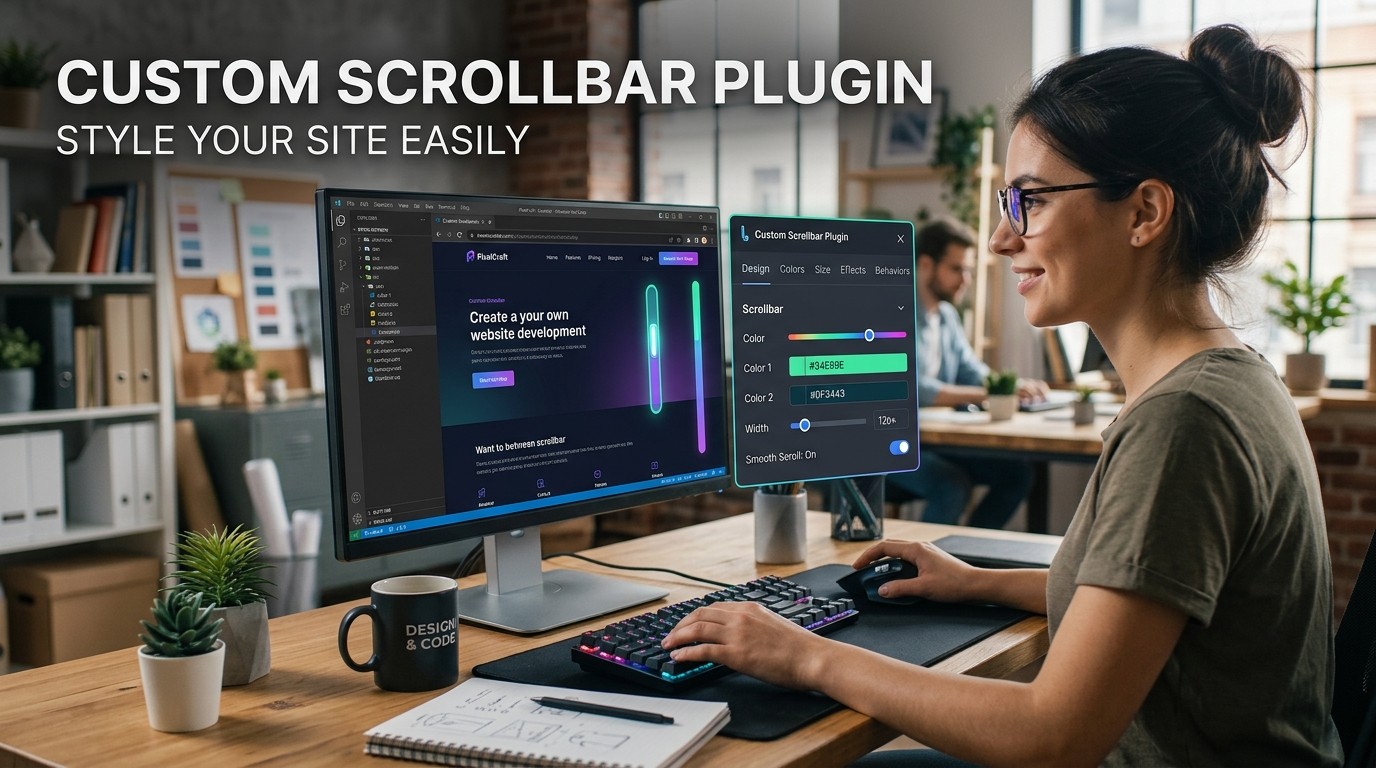
A Custom Scrollbar Plugin helps WordPress sites turn an overlooked browser element into a visual detail that improves branding, clarity, and user comfort without sacrificing speed or usability.
A Custom Scrollbar Plugin may seem like a small design choice, but small details often shape the way visitors feel about a website. When people browse a page, they notice rhythm, color, spacing, and visual consistency even when they do not consciously name each detail. A scrollbar belongs to that experience. It is used constantly, so when it matches the brand, the site feels more intentional. When it clashes, the design can feel unfinished.
The tool also supports a larger principle in web design: users enjoy interfaces that feel cared for. People may not praise a scrollbar directly, but they respond to the overall feeling of refinement. A page that respects detail often feels easier to read and easier to navigate. That is especially true on content-heavy sites where scrolling becomes the main interaction.
A Custom Scrollbar Plugin also helps reduce the gap between a generic browser interface and a branded digital experience. That gap matters more than many site owners realize. A page that looks customized in every other way can still feel slightly incomplete if the scrollbar remains untouched. Even if the change is subtle, the site feels more deliberate. That sense of intention can improve trust, especially for brands that want to present themselves as polished, modern, and detail-oriented.
What a custom scrollbar tool actually does
A Custom Scrollbar Plugin changes the appearance of the scroll bar that visitors see while moving through content. Depending on the plugin, it may let the user control width, color, track shape, thumb styling, hover effects, animation, and browser behavior. The point is not only decoration. It gives a site owner more control over consistency, so the scroll experience can match the rest of the branding.
Some plugins are simple and focus on color and radius. Others allow deeper customization, including smooth scrolling, minimal thumb size, or separate desktop and mobile behavior. The best option should support the site’s design system without adding visual noise.
The best use is intentional. It should support readability, not distract from it. A decorative element that becomes too large or too flashy can pull attention away from the content. The ideal plugin lets the owner shape the scrollbar just enough to improve presentation while keeping the browsing experience natural and comfortable.
A well-chosen plugin can also make the site feel easier to maintain. When the scrollbar settings are intuitive, the designer or site manager can make small adjustments without touching code. That lowers friction and keeps future updates simpler. In practical terms, a Custom Scrollbar Plugin is not just about appearance; it is also about giving site owners a manageable way to preserve visual consistency across pages and devices.
Why users respond to visual consistency
A Custom Scrollbar Plugin matters because the brain likes patterns. When visitors see a website where colors, spacing, icon style, buttons, and scroll behavior all feel aligned, the page feels more trustworthy. Human attention is selective, so users do not analyze every detail in a formal way. Instead, they sense whether a site feels organized.
Subtle interface changes can influence engagement. If the scrollbar matches the site theme, the page appears more refined. If it is awkwardly styled or left untouched while everything else is customized, the interface can feel less deliberate. The right styling helps close that gap.
The effect is especially useful on brand-led websites. A fashion blog, a digital agency, a travel magazine, or a premium landing page all depend on atmosphere. This kind of small visual alignment can reinforce that atmosphere without adding clutter. In that sense, the scrollbar becomes part of the larger branding system.
This is also where first impressions matter. Visitors rarely give a second chance to a site that feels sloppy or inconsistent, especially when they are deciding whether to read, buy, or subscribe. A Custom Scrollbar Plugin can contribute to the feeling that a website has been designed carefully from top to bottom. That feeling is subtle, but it can help move a visitor from casual browsing to genuine confidence.
Where the scrollbar matters most

A Custom Scrollbar Plugin has the biggest impact on pages where scrolling is a core behavior. Long-form articles, product catalogs, category archives, forums, and documentation pages all benefit from a scrollbar that looks deliberate. These pages keep visitors moving continuously, so even a small visual improvement can contribute to comfort.
It also matters on pages with strong visual identities. If a site has custom backgrounds, cards, and typography, an ordinary browser scrollbar can stand out in the wrong way. Bringing that element into the same design conversation creates a stronger sense of unity, which can improve perceived quality.
A second place where the tool helps is browsing across devices and screen types. Even though touch devices handle scrolling differently, many users still switch between devices. Keeping the desktop version aligned with the rest of the experience helps the brand stay recognizable across contexts. That consistency supports memory and trust.
This is particularly helpful for websites that keep visitors on the page for longer sessions. News portals, tutorials, product guides, and creative portfolios all benefit from smooth visual continuity. A Custom Scrollbar Plugin gives those pages one more layer of finish, helping the interface feel composed rather than assembled from disconnected parts.
Core benefits at a glance
| Benefit | Why it matters | Best for |
|---|---|---|
| Branding consistency | Makes the scrollbar match the site style | Stores, brands, agencies |
| Cleaner UI | Reduces the feeling of a default browser look | Blogs, portfolios |
| Better perceived polish | Signals attention to detail | Premium sites |
| Optional smooth behavior | Can make movement feel more fluid | Long-form content |
| Adjustable visuals | Allows color and size control | Theme-based websites |
The tool is not about adding features for the sake of it. It is about sharpening the existing interface so it feels more complete. That is why site owners often treat it as part of a broader design pass rather than an isolated tweak. The right implementation can make the entire page feel more cohesive.
Another advantage is flexibility. A website can change its branding over time, and the scrollbar can evolve with it. That matters for businesses that refresh their identity or publish seasonal campaigns. When the scrollbar can be tuned quickly, the site keeps pace with design changes without requiring a full rebuild.
Choosing the right scrollbar approach
A Custom Scrollbar Plugin should be chosen with the same care as any visible design element. The first question is whether the site needs deep styling or just a light visual update. A lightweight blog may only need simple color matching, while a portfolio site may benefit from more advanced hover states and shape control.
The second question is compatibility. A plugin that looks beautiful on one theme may behave poorly on another. The best choice should work smoothly with the current layout, page builder, and responsive settings. It should never break spacing, overlap content, or create lag on scroll.
The third question is control. Some owners want a set-and-forget tool. Others want detailed styling options. The right tool should fit the workflow of the person managing the site. If the interface is too technical, updates become frustrating. If it is too limited, the final result may feel generic.
Selection is easier when the site’s purpose is clear. A content-first website does not need the same styling depth as a creative agency homepage. A site with a strong brand palette may need only a few adjustments to feel complete. A Custom Scrollbar Plugin is most effective when it supports the broader goal instead of becoming a design distraction.
Design details that shape perception
A Custom Scrollbar Plugin gives control over more than color. Width, corner radius, track transparency, and thumb contrast all influence how natural the scrollbar feels. If the thumb is too thin, the control can feel hard to use. If it is too thick, it can distract.
Matching the scrollbar to the brand palette is usually the first step, but it is not the only one. Some websites look best with a muted scrollbar that quietly blends into the edge of the page. Others benefit from stronger contrast because the design is dark or highly textured.
Hover behavior also matters. A slight color shift or subtle animation can add a premium feeling, but it should remain restrained. The scrollbar works best when it feels like part of the interface rather than a special effect competing for attention.
This is where design judgment becomes important. The right settings are not necessarily the most dramatic ones. Instead, they are the ones that make the page feel coherent. A scrollbar that matches the page’s tone, spacing, and visual energy can improve the experience in ways that users feel instinctively, even if they never mention the scrollbar by name.
Performance should stay part of the decision
A Custom Scrollbar Plugin should never feel heavier than the job it performs. Because the scrollbar is such a small interface component, users expect the implementation to be efficient. If the plugin adds unnecessary scripts, causes scroll delay, or slows down page rendering, the visual benefit loses value. Performance matters because scrolling is continuous and sensitive to friction.
Before installing any plugin, it helps to test how the page behaves with long content, images, and interactive elements. The tool should not interrupt loading flow or create jank when a visitor moves through the page. Smooth behavior is part of the promise. If the user notices lag, the plugin has failed in its basic purpose.
The good news is that many modern solutions are lightweight. Still, the site owner should verify that the plugin behaves well on the actual theme and not just in a demo. A strong result comes from testing in the real environment, not from assuming a plugin will perform well because it looks good in a promotional screenshot.
Installation and setup process
Install the plugin through the WordPress dashboard or by uploading the file manually if the site setup requires it. After installation, activate the tool and open its settings page. The plugin usually offers a few core options first: enable or disable the effect, set colors, adjust thickness, and decide whether the style should apply sitewide or only in certain areas.
Start with conservative settings. It is easier to make a scrollbar slightly bolder later than to reduce a design that feels too strong. Test with both short and long pages, since some effects look different when content length changes. Save each adjustment and view it from the front end before moving on.
If the plugin supports browser-specific behavior, review those options carefully. Not every styling trick behaves the same in every environment. The tool should be checked on major browsers so the interface remains dependable across devices and systems. The goal is not perfection in theory. The goal is a stable, attractive experience in practice.
A good setup process also includes a quick final review of the page hierarchy. The scrollbar should not compete with buttons, headings, or important calls to action. It should sit quietly at the edge of the experience, doing its job without drawing extra attention.
A simple setup checklist
A Custom Scrollbar Plugin is easier to configure when the process follows a checklist. First, match the scrollbar color to the dominant brand tone. Second, choose a thickness that remains visible but not intrusive. Third, make sure the thumb contrasts enough against the track. Fourth, test hover changes for subtlety. Fifth, review the result on desktop and mobile-adjacent views.
This kind of checklist is useful because it prevents over-design. The tool can tempt people to keep adjusting tiny details until the page feels overworked. A checklist keeps attention on the essentials. It also makes collaboration easier when multiple people review the site. Instead of debating abstract taste, the team can compare the settings against a clear standard.
The final check should always be the user’s feeling. Does the scrollbar fit the page, or does it call attention to itself? The right outcome is usually the quieter one. A visitor should experience the effect as part of the site rather than as a separate design statement.
That same checklist can be reused after every redesign or theme update. When the colors, fonts, or spacing change, the scrollbar should be reviewed again. This keeps the interface aligned as the site evolves. A small review habit can prevent the scrollbar from becoming the one detail that feels left behind.
When minimal design is the better choice
A Custom Scrollbar Plugin does not always need to be dramatic. In many cases, the best result is a nearly invisible improvement that simply brings the browser chrome into harmony with the page. Minimal styling works especially well on editorial sites, professional services pages, and documentation hubs where readability matters more than decoration.
A restrained approach also protects trust. Some users associate excessive effects with gimmicks, especially on business websites. A neutral scrollbar with a brand-tinted accent often performs better than an aggressively animated one.
Minimal design is also easier to maintain. When the site rebrands or changes theme later, a modest setup is less likely to require extensive rework. That makes the visual system more adaptable over time, which is an important advantage for growing websites.
This approach also helps the page remain timeless. Styles that are too trendy can age quickly, while simple refinement tends to stay useful longer. A carefully tuned scrollbar can support the brand today and still feel appropriate after the next content refresh or theme update.
When stronger styling makes sense
There are cases where a Custom Scrollbar Plugin should do more than blend in. Design-forward portfolios, product showcases, high-end landing pages, and creative agency sites often benefit from a bolder interface. In those environments, a more visible scrollbar can feel intentional and memorable. The key is to make it feel like part of the brand, not an extra effect pasted on afterward.
Strong styling can also support a dark interface. In dark themes, the scrollbar needs enough contrast to remain usable while still preserving the atmosphere of the design. The track and thumb should be easy to read, and the hover state should remain elegant. A strong visual choice works only when it improves clarity.
Even then, restraint still matters. The scrollbar should never become so stylized that it distracts from text, images, or calls to action. The best bold designs are controlled designs. They feel confident, not loud.
When a site already uses expressive colors, motion, or layered visuals, a stronger scrollbar can feel like a natural extension of the design language. In that context, the effect is not a gimmick; it is a final detail that helps the page feel complete. The important thing is to keep the interface balanced so the scrollbar supports the story rather than interrupting it.
Accessibility and comfort
A Custom Scrollbar Plugin must be evaluated through an accessibility lens. People use websites in different ways, and some users rely on the scrollbar more than others. A clear thumb, enough contrast, and stable behavior make navigation easier. It should not reduce visibility just to achieve a sleek look.
Contrast is especially important. If the scrollbar blends too much into the background, some visitors may struggle to locate it. If the thumb is too small, it can become frustrating to grasp or track. The tool should respect the practical needs of people who scroll quickly, read deeply, or work with larger content blocks.
Comfort also includes motion sensitivity. Some plugins offer animation and smoothing effects that feel pleasant to one user and tiring to another. It is wise to keep motion subtle and avoid effects that make movement feel unnatural. The plugin should help the user flow through content comfortably, not introduce extra strain.
Accessibility also includes predictability. People should be able to scroll without surprise, confusion, or interface drift. A scrollbar that behaves consistently builds confidence. When a site respects those expectations, it becomes easier for a wider range of people to use the content comfortably and efficiently.
How content type changes the design choice
A Custom Scrollbar Plugin should reflect the type of content on the site. For a news site or blog, readability and calm consistency are usually most important. For a product showcase, visual identity may matter more. For a knowledge base, users need fast orientation and low friction.
Long tutorials, documentation pages, and resource libraries often benefit from a scrollbar that remains visible and intuitive. In these cases, the tool helps users stay oriented in lengthy content. That orientation reduces cognitive load, which makes the page feel easier to use. On the other hand, a short landing page may need only a light touch because the user sees little scrolling in the first place.
The more a site depends on scrolling, the more valuable the plugin becomes. It is at its best when the site is content-rich and the browsing journey matters. That is where small design decisions accumulate into a noticeably better experience.
For example, an educational site may benefit from a quiet scrollbar that stays out of the way, while a creative showcase may use a more distinctive style to deepen the mood. The right choice depends on the role scrolling plays in the page. The scrollbar should support that role, not fight against it.
Common mistakes to avoid
The most common mistake is over-styling. A Custom Scrollbar Plugin can be tempting to customize heavily, but too many effects create distraction. Another mistake is using a color that clashes with the page. The scrollbar should support the design system, not compete with it. A third mistake is forgetting to test across browsers and screen sizes.
Some site owners also forget that the tool should remain usable on all content lengths. A setting that looks great on a single demo page might feel awkward in a long article or a dense product archive. That is why testing matters. A good scrollbar is one that works repeatedly in real browsing conditions.
Finally, some users install the plugin and never revisit it after a redesign. That can leave the site with outdated styling. The tool should be reviewed whenever the color palette, typography, or layout changes. The scrollbar is small, but it still belongs to the visual system.
Another frequent issue is choosing settings that look polished in screenshots but fail in actual reading sessions. A design can appear elegant for three seconds and still become tiring after three minutes. Real use matters more than appearance alone. The best results come from observing how people actually move through the site.
Troubleshooting guide
If the scrollbar does not appear, check whether the plugin is enabled globally or only on selected pages. It may also be affected by theme scripts or caching, so clear caches before testing again. If the design appears but looks broken, inspect the colors and sizes. The issue may be a contrast problem rather than a malfunction.
If scrolling feels delayed, the plugin may be too heavy or conflicting with another script. Disable other visual tools temporarily and compare results. The tool should be evaluated in isolation when debugging. This helps identify whether the issue comes from the scrollbar tool or another part of the site.
If the plugin works in one browser but not another, the implementation may rely on browser-specific behavior. That does not always mean the plugin is bad, but it does mean the settings need more scrutiny. It is only successful when it remains reliable in the environments visitors actually use.
Troubleshooting is easier when changes are made one at a time. If too many settings change at once, it becomes harder to identify the source of the problem. A calm, step-by-step approach saves time and protects the rest of the site from unnecessary disruption.
How this fits into broader site design
A Custom Scrollbar Plugin is part of a larger design philosophy that values coherence. The scrollbar is one of many small cues that tell visitors whether a site feels polished. Buttons, headings, menu spacing, hover states, card edges, and scroll behavior all contribute to that feeling. When one of those pieces is left behind, the site may feel unfinished.
That is why design teams often review all interface details together. The scrollbar can be aligned with the brand color, the shape language of buttons, and the general mood of the theme. When the scrollbar feels like it belongs, it reinforces the professionalism of the entire site. This is not a dramatic transformation, but it is an important one.
A polished site often succeeds because it removes tiny points of friction. This tool can do exactly that when it is used thoughtfully. It supports the broader experience by making an ordinary action feel intentionally designed.
Interface polish also matters because visitors usually judge the quality of a site in seconds. They may not consciously notice each detail, but they do register the overall atmosphere. A custom scrollbar helps support that atmosphere, especially when paired with careful spacing, readable typography, and well-considered navigation.
A comparison mindset for plugin shoppers
A careful buyer looks beyond the first attractive option. The tool should be compared with alternatives based on simplicity, styling depth, stability, and support. Some users browse recommendations in lists like Top 10 WordPress GPL Plugins, but the real question is whether the tool matches the site’s exact need.
This is where the mindset of a WordPress GPL Plugins Buyer becomes useful. The buyer is not just collecting files. The buyer is evaluating fit, quality, and long-term usefulness. The same discipline applies here. If the plugin adds clarity and matches the site’s visual identity, it is a better choice than one that merely looks trendy.
Design evaluation also overlaps with WordPress Plugin Design And Interface UI UX. If the settings panel is confusing, the installation process becomes harder than necessary. A strong interface saves time and reduces mistakes. Even a simple plugin feels better when the controls are obvious and the workflow is smooth.
There is also a practical side to comparison. A good option should be easy to update, easy to explain to a team, and easy to remove if the site changes direction. That kind of flexibility matters for real-world projects, especially when multiple people manage the website over time.
Relation to navigation heavy sites
A Custom Scrollbar Plugin can complement other interface tools on content-rich sites. For example, a Mega Menu Plugin WordPress users rely on may improve navigation structure, while the scrollbar improves the physical act of moving through long pages. Together, they make the site easier to explore. One shapes the menu experience, and the other shapes the reading experience.
This kind of pairing is useful because visitors do not experience site elements separately. They feel the whole journey. The scrollbar may seem small beside a major navigation tool, but it contributes to the same perception of order. When menus, scroll behavior, and layout rhythm all align, the site feels stronger.
That is why small interface improvements are worth serious attention. They may not headline a redesign, but they often help the redesign feel complete. This tool belongs in that category of detail that quietly improves the whole.
A site that uses strong navigation and refined scrolling behavior gives users two kinds of confidence at once: confidence that they can find what they need, and confidence that the interface will not get in their way. That combination is especially valuable for large websites with deep content libraries.
Long-term maintenance habits
Once the plugin is in place, keep an eye on updates, theme changes, and browser behavior. It may need small adjustments after a redesign or when a new version of WordPress changes rendering behavior. Regular checks prevent surprises and preserve consistency.
It is also helpful to document the chosen settings. If the site is handed to another developer or a client requests a revision later, the saved notes reduce confusion. The tool is easy to forget because it is subtle. Documentation ensures it does not disappear into the background of the workflow.
Maintenance is not only technical. It is also visual. Periodically compare the scrollbar with the rest of the site and ask whether it still fits the brand. The tool should evolve with the website, not remain frozen while the design moves on.
This habit is especially useful after content expansion. A page that once felt short may become much longer, and a scrollbar style that once looked understated may suddenly become more prominent. Reviewing the setup at regular intervals keeps the interface aligned with the current site experience.
When a scrollbar upgrade is worth it
A scrollbar update is worth considering when the site already has a clear visual identity and the default browser style feels out of place. It is also worth it when readers spend a lot of time on long pages, because the scrollbar becomes part of the daily interaction pattern. A thoughtful update can make the page feel cleaner, especially when the rest of the design already follows a consistent color system, spacing rhythm, and typography scale. On the other hand, if the site is very simple, very short, or built for pure utility, a minimal approach may be better. The best decision comes from observing real visitor behavior, not just following design trends. If people scroll often, pause often, or browse many sections in one session, a refined scrollbar may improve comfort more than expected. That is usually the signal that the change is worth making.
Practical ways to think about value
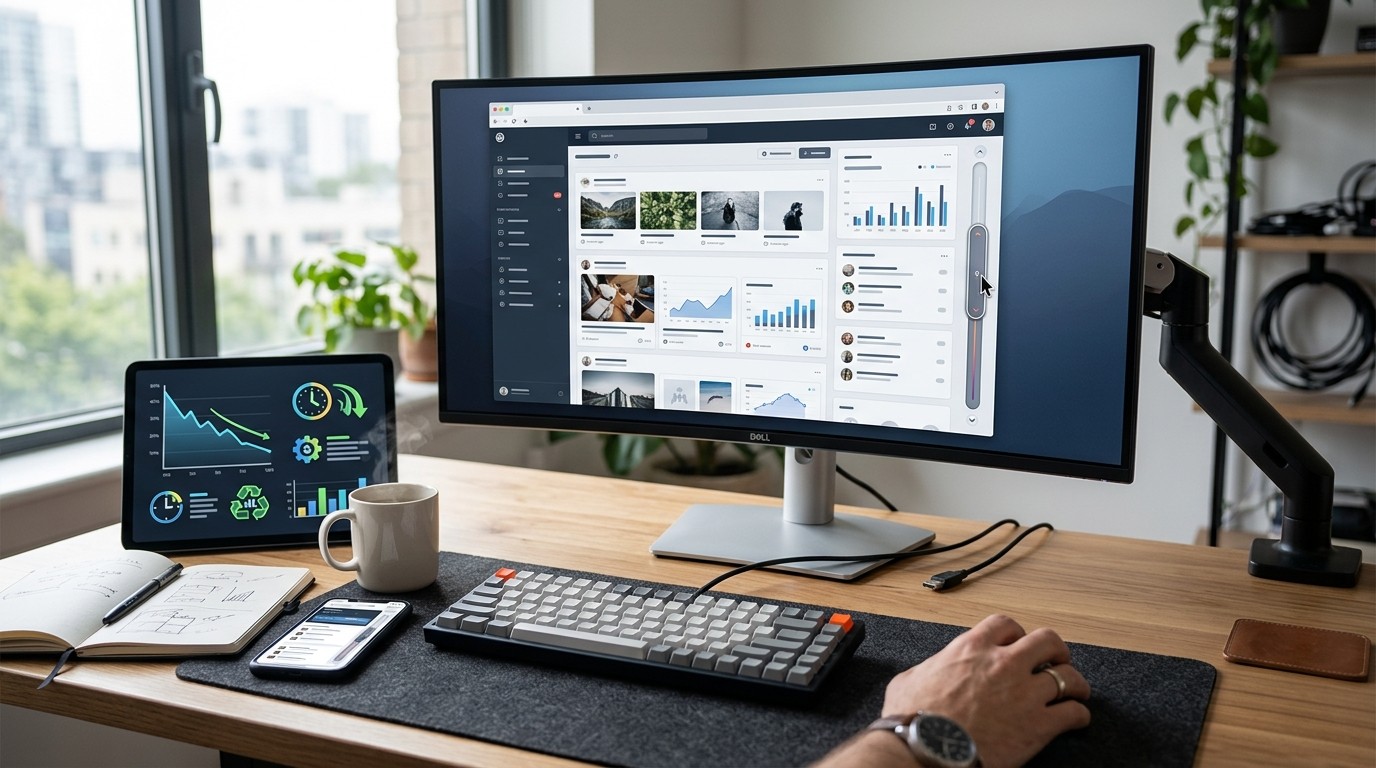
The tool is worthwhile when it improves the site in ways visitors can feel, even if they never name the change directly. Better visual consistency, smoother reading flow, and stronger branding all count as value. If the plugin creates clutter or slows the page, the value disappears.
Think of the scrollbar as part of the site’s atmosphere. Just as typography influences tone and spacing affects comfort, the scrollbar influences how finished the interface feels. It is a small tool with a surprisingly large role in that atmosphere. Used well, it supports the brand quietly and reliably.
The best signs of success are simple. The page feels cleaner. The scrollbar looks like it belongs. The visitor keeps moving without distraction. That is the kind of result a thoughtful setup should deliver.
Value also comes from consistency across the whole site. When the scrollbar matches other interface details, the design feels coherent from the first glance to the last scroll. That coherence can shape how professional the site appears and how comfortable it feels to use.
Conclusion
A Custom Scrollbar Plugin is a small design tool with a meaningful role in the overall user experience. It helps a website feel more complete, more polished, and more aligned with its visual identity. When chosen carefully, it can strengthen branding, improve comfort, and support better browsing without harming performance. The key is balance: enough customization to create harmony, but not so much that the interface becomes distracting. For content-heavy, design-conscious, or brand-focused sites, this kind of enhancement can make the entire page feel more intentional and easier to use. A thoughtful setup turns a standard browser detail into a subtle advantage that visitors experience every time they scroll.
Frequently Asked Question (FAQ)
1. What is a Custom Scrollbar Plugin used for?
It changes the appearance and behavior of the browser scrollbar so it matches the site’s design and improves visual consistency.
2. Does a Custom Scrollbar Plugin affect performance?
A well-built option should have minimal impact, but heavy scripts or poor implementation can slow scrolling and reduce smoothness.
3. Is a Custom Scrollbar Plugin useful on every website?
Not every site needs one, but it is especially helpful on long pages, brand-focused websites, and content-heavy layouts.
4. Can I use a Custom Scrollbar Plugin with any WordPress theme?
Usually yes, but compatibility depends on the theme and other plugins. Test it on the real site before making it live.
5. Is a Custom Scrollbar Plugin good for accessibility?
It can be, as long as the scrollbar remains visible, high-contrast, and easy to use. It should never reduce usability.
6. Should I make the scrollbar bold or minimal?
That depends on the design. A subtle approach often works best unless the site is highly visual or creative.
7. Can a Custom Scrollbar Plugin match my brand colors?
Yes. Most tools let you match colors, thickness, and hover states so the scrollbar fits your brand identity.
8. What should I test after installing it?
Check appearance, scrolling smoothness, browser compatibility, and mobile-adjacent behavior. It should feel natural in real use.
9. How do I choose the right plugin?
Compare ease of use, styling options, speed, and compatibility. The right tool is the one that fits your website goals.
10. Does a scrollbar really matter that much?
Yes, because small interface details shape trust and comfort. It can improve the overall feeling of quality on a site.



Leave a Reply